> For the complete documentation index, see [llms.txt](https://docs.number.tech/llms.txt). Markdown versions of documentation pages are available by appending `.md` to page URLs; this page is available as [Markdown](https://docs.number.tech/documentation/getting-started/integration-options/payform/apple-pay-google-pay.md).
# Apple Pay / Google Pay
Configuring your PayForm for integrated payments via the Apple and Google digital wallets
In order to add Apple Pay / Google Pay functionality to your PayForm, you'll need to modify your [request](/api-reference/rest-api/payform.md) as follows:
**InitParams.EndPoint remains the same:**
{% code overflow="wrap" %}
```jsonc
"EndPoint": "PayForm/PF.aspx"
```
{% endcode %}
**WidOptions.eFeatures should be updated to the code "0004":**
{% code overflow="wrap" lineNumbers="true" %}
```json
"WidOptions": {
"eVisible": "2EFF",
"eReadOnly": "0000",
"eStyles": "0001",
"eSubmission": "0210",
"eFeatures": "0004", /* this code must be present */
"eColors": "#ffffff,#428bca,#007bff,#212121,#ffffff,#212121,#ffffff"
}
```
{% endcode %}
#### Considerations
1. **Notify us prior to submitting test transactions:** Notify the Number team when you are ready to test. We will configure your account to prepare it for your test submissions.
2. **PayForm appearance/size:** If our PayForm determines that Apple Pay or Google Pay can be used during the cardholder's browser session, you will notice one or both additional buttons displayed (see below). The PayForm will grow vertically as appropriate to accomodate the additional pay buttons.
3. **Domain:** If you plan to display our widget within an iframe, we will need to get your domain approved (Apple Pay only). Contact the Number tech team to accomplish this. We will have you publish a small text file on your web server which Apple will discover.
4. **SandBox:** In order to get approvals in the sandbox (Apple Pay only) you will need:\
\- A Sandbox Apple ID (different from your real Apple ID)\
\- An iPhone or iPad that supports Apple Pay.\
\- The device must be signed into iCloud with the sandbox account, not your normal Apple ID.
#### Step-by-step: How to get test cards into your Apple Pay Wallet
1. **Create a Sandbox Apple ID** \
Go to Apple’s developer site → *Account* → *Users and Access* → *Sandbox Testers*. Create a new tester account (email must be unique and not tied to an existing Apple ID).
2. **Sign out of your real Apple ID on your device**\
Settings → Your Name → *Sign Out*.
3. **Sign in with the Sandbox Apple ID**\
Settings → Sign in → use the sandbox credentials.
4. **Open the Wallet app**\
Once the device is in sandbox mode, you can begin to add Sandbox test cards to your **Apple Pay Wallet (**tap **Add Card)**.
5. **This link has valid test cards you can put in your wallet:**\
[Sandbox Testing - Apple Pay - Apple Developer](https://developer.apple.com/apple-pay/sandbox-testing/)
6. **Use the cards only in sandbox-supported apps/sites**\
They will not work in production environments. Real cards are required for production testing.
## Google Pay Considerations
To test Google Pay in our PayForm you need to do the following:
1. Notify us that you are ready to test (we will modify your test account)
2. Make sure you are logged in to your google account
3. Open your Number PayForm using your test account. The Google Sandbox Wallet should become available automatically.
The sandbox test cards provided by Google often do not pass CVV match requirements. You may want to leave that option out of the submission options while you test.
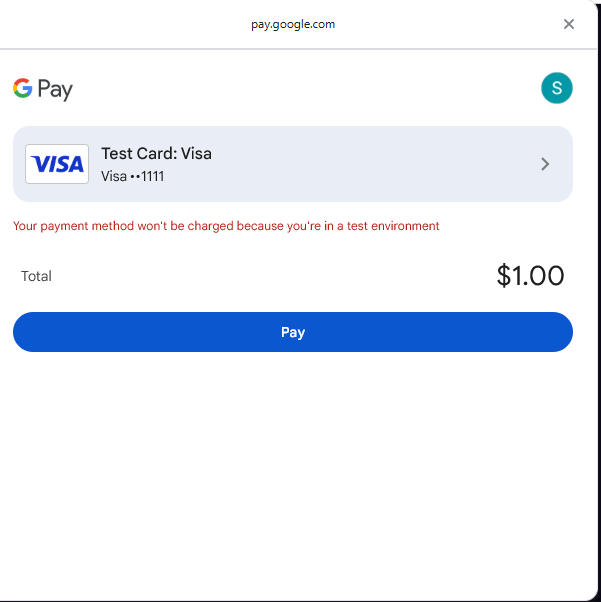
Once you are ready to Pay you will see a message which indicates that no actual funds will be charged in the TEST ENVIRONMENT.
---
# Agent Instructions
This documentation is published with GitBook. GitBook is the documentation platform designed so that both humans and AI agents can read, navigate, and reason over technical content effectively. Learn more at gitbook.com.
## Querying This Documentation
If you need additional information that is not directly available in this page, you can query the documentation by asking a question.
Perform an HTTP GET request on the following URL with the `ask` and `goal` query parameters:
```
GET https://docs.number.tech/documentation/getting-started/integration-options/payform/apple-pay-google-pay.md?ask=&goal=
```
`ask` is the immediate question: it should be specific, self-contained, and written in natural language.
`goal` is what the user is ultimately trying to achieve, the reason they need the answer. Sharing it helps GitBook give you a better, more relevant answer. A goal is most helpful when it describes the outcome the user wants rather than restating the question. For example, with `ask=how do I create an API token`, a goal like `automate deployments from our CI pipeline` lets GitBook tailor the answer to that use case.
The response will contain a direct answer to the question and relevant excerpts and sources from the documentation.
Use this mechanism when the answer is not explicitly present in the current page, you need clarification or additional context, or you want to retrieve related documentation sections.